Zoom in Windows
I do a lot of presentations. The only thing I like more than writing code is talking about writing code.
I’ve always had a little angst about zooming my screen though because…
-
The built-in Windows Magnifier seemed to get in my way
-
The excellent and popular Zoom It tool requires an extra install and I never seem to have it running when my presentation starts.
I recently discovered, though, a couple of options that make theh built-in Windows Magnifier work way better for me.
First, I looked up the keyboard shortcuts and beyond the basics of WIN + = for zooming in and WIN + - for zooming out, you can use WIN + ESC to exit the zoom altogether. Prior to discovering that, I thought it was necessary to zoom all the way back out. I also found that CTRL + ALT + Mouse Wheel works to zoom in and out with your mouse.
Now, my biggest aggravation with the Magnifier was how the UI rendered every time I performed a zoom. There’s a Magnifier settings to “Collapse to magnifying glass icon”. That’s better than the full window, but it’s still fairly obtrusive. So here’s the trick.
-
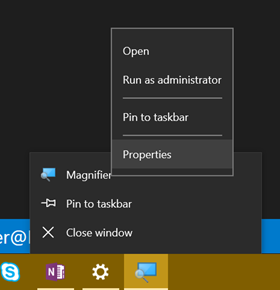
Start Magnifier so the icon appears on the Task Bar.
-
Now right click on the Magnifier icon, right click on the Magnifier entry in the context menu, and hit Properties.
-
Now set Run to Minimized
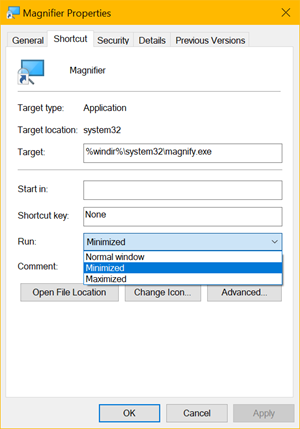
That’s it. Now when you hit WIN + = to zoom in, the screen zooms in to the mouse cursor and doesn’t render any obtrusive UI.
It’s the simple things that light me up!
Quick note. A colleague just read and tried this and it didn’t seem to work for him. I tried it again and the behavior is not exactly like I indicated in this post. I spent some time trying to figure out exactly what’s up, and I figured out that if the magnifier is not running, then it will still create the UI. If you check the box I mentioned to earlier - Collapse to magnifying glass icon - the UI is smaller, but it’s still there. The application is not active, but if it happens to show up where your cursor is, then it’s still obstructive. So, I am going to submit this feedback to the Windows team to see if I can be an advocate of change. It does help if you move the Magnifier’s window to a remote area of the screen, and you can also just minimize it, but both of those take a little effort. Anyway, we’ll get this figured out :)
Okay, folks. I submitted this feedback via Windows Feedback and it was promoted to bug 16580796 within the hour. Impressed. Fingers crossed this is fixed in the next Windows update.